Set up Member Info links
Member Info links allow you to create dynamic links to outside web resources to provide additional information about members. For example, you might set up links to look up customers on Google™ search. The links can include items such as member names and codes to look up information about the selected member. These links appear in the Global section of the Member Info panel.
|
To set up Member Info links
|
-
Go to the Global area of the Member Info panel.
-
Click 
|

|
-
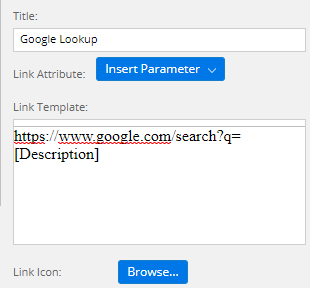
Enter a link Title.
-
In the Link Template text window, enter the general URL of the web page.
-
Place your cursor where the member code or description should appear in the URL.
-
Click Insert Parameter and select an option (Code or Description) from the drop-down menu, depending on what parameter should appear in the URL. When a user clicks the link, the value of the selected member replaces the parameter.
-
Optionally, select an icon file to use as the image for the link button. Click Browse and navigate to an appropriate image file. Click Open.
|
|
-
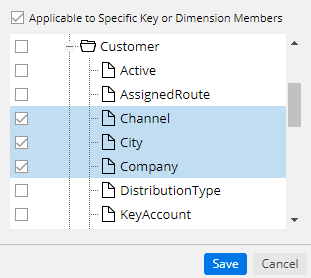
If you want the link to be available for members of all keys and dimensions, clear the Applicable to Specific Key or Dimension Members box. This means that the link button will appear for all Group Bys.
If you only want the link to be available for certain keys/dimensions, check the Applicable to Specific Key or Dimension Members box. Then, check the boxes of the key and dimensions. Note that checking the box of a key does not automatically check the boxes of the dimensions underneath it.
-
Click Save.
|
|